Sign documents
Read and sign your business's waiver or agreement online, and keep a copy of what you signed.
Businesses ask their members to sign documents such as a liability waiver or a membership agreement. You sign once, with your finger or mouse, and keep a copy.
On the website
-
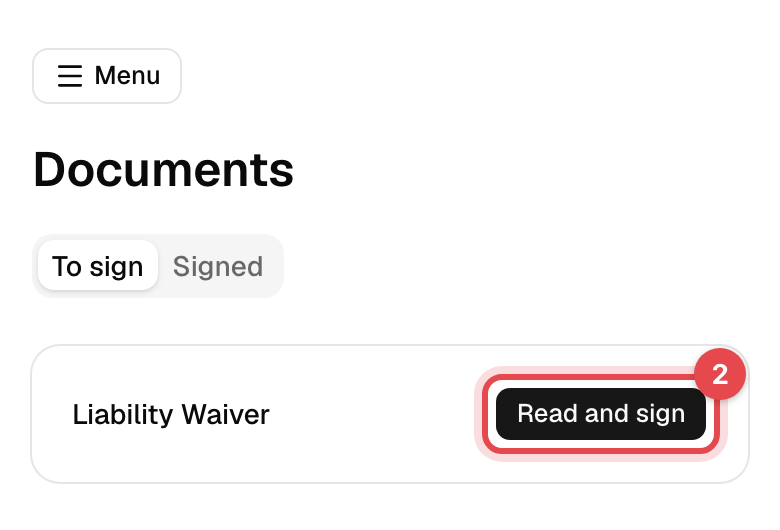
Open Account. Waiting for your signature shows when there's something to sign: tap Read and sign. Or open Documents in the account menu, on the To sign tab.
-
Tap Read and sign next to the document.
-
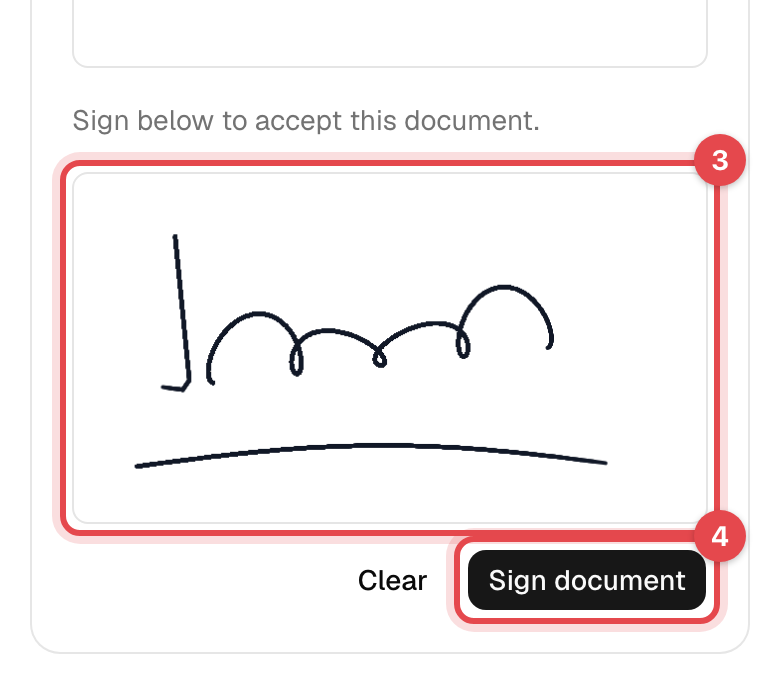
Read the document, filled in with your details, then sign in the box under it. Clear starts over.
-
Tap Sign document.
In the app
- Tap Menu, then Documents, on the Pending Documents tab. Home lists them too.
- Tap the document, then Sign document, and read it.
- Tap Sign Document, sign with your finger, and tap Sign. Reset starts over.
What happens next
- "Document signed": it moves to the Signed tab, with the date you signed it. View or Download gives you the signed copy as a PDF. In the app it's under Signed Documents, where View document opens it.
- The business sees it signed straight away, on your profile.
- If the business needs signed documents before you book, pay or check in, you can do all of them again now. On the business's website, a document you still have to sign opens when you book or check out, so you can sign it right there.
Good to know
- What you have to sign depends on your membership: some documents are for every member, others come with a particular plan. Buying a new plan can add one.
- Signed once. A small edit to a document doesn't ask you to sign again. When the business changes its terms and asks everyone to sign the new version, it comes back under To sign, and you get an email about it.
- At the front desk: if the business needs it signed first, its self-service tablet asks you to sign as you check in.
- For a child: the parent who manages the family signs the child's documents. See Your family.