Add a closure
Mark the days your business is closed, such as a public holiday, so nobody can book them.
Add a closure for the days you're closed, and nobody can book a class or an appointment on them. Classes already scheduled on those days stay until you delete them.
Before you start
- You need the Schedule or the Settings permission. The Owner and Managers have both.
Steps
- Open Settings → Closures. On the Calendar, the Closures button leads there too.
- Click Add closure.
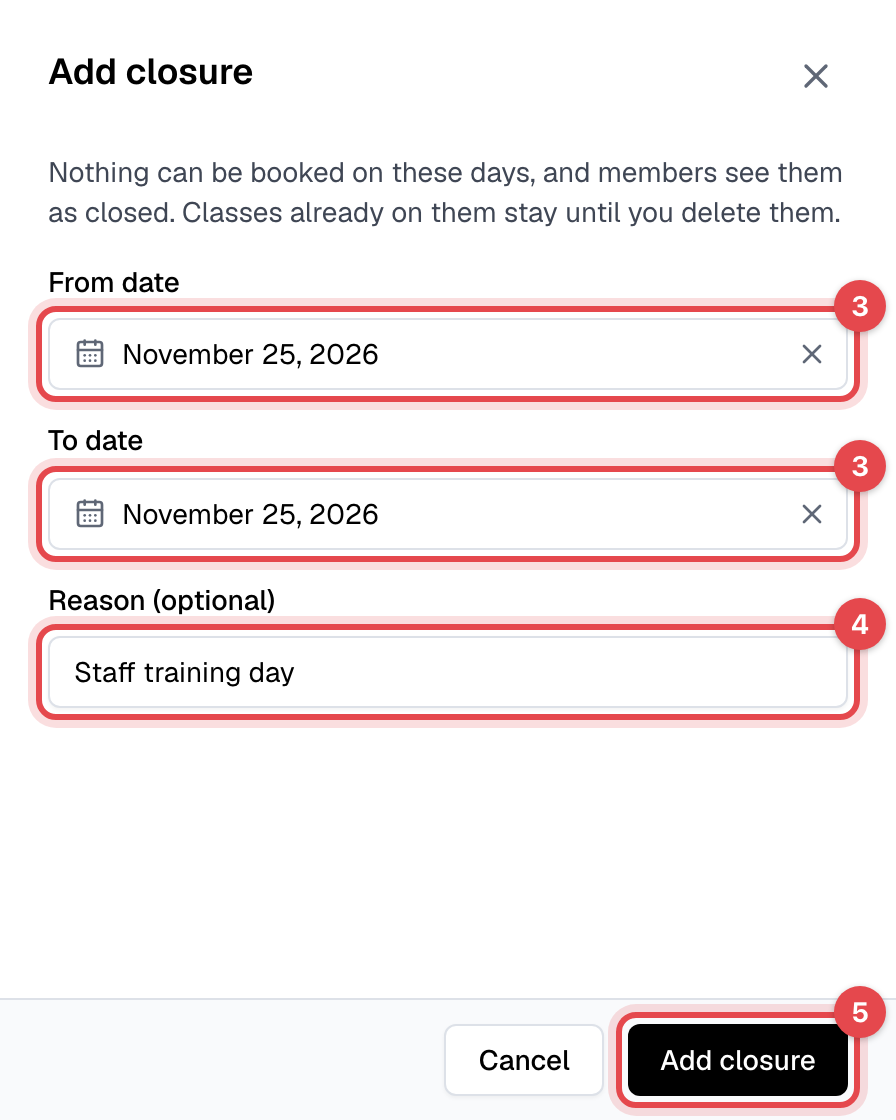
- Pick the From date and the To date. For one day, pick the same date twice.
- Add a Reason (optional), such as "Public holiday". Members and staff see it next to the day.
- Click Add closure.
Clear what's already on those days
The closure's row counts the Upcoming classes and Upcoming appointments still on its days.
- Next to the classes, click Delete them. The bulk delete panel opens with the closure's dates; check the summary, then click Delete classes and Delete. See Delete classes.
- Next to the appointments, click View them to see them in Appointments, and cancel each one there. See Book an appointment.
What happens next
- Nobody can book a class, join a waitlist or book an appointment on those days: not members, and not staff either. Members are told the business is closed, with the reason.
- Appointment times on those days disappear, whatever the coaches' hours say.
- Members see the days as closed in the app's schedule and on your website. Your Calendar shows them as closed too.
- When you schedule repeating classes, dates that fall on a closure are skipped unless you untick Skip the days the business is closed.
Good to know
- Two closures can't share a day. To make one longer, open its menu in the list and click Edit.
- Deleting a closure from its menu opens the days for booking again at once. Classes you deleted don't come back.
- Bookings already on those days stay booked until you clear them as above.