Edit classes
Change one class's time, date or coach, or move a whole series of classes at once.
Change a single class when something comes up, such as a substitute coach. When your timetable changes, change every matching class in one go with Bulk edit schedule.
Before you start
- You need the Schedule permission. The Owner and Managers have it.
- Only upcoming classes can be changed. A class that has started or ended stays as it was.
Edit one class
- Open the class: click it in Classes, or on the Calendar and then Open class page.
- Click Actions, then Edit.
- Change the Coach, Date, Start time or End time.
- Click Save changes.
Change many classes at once
- Open one class of the series, as above.
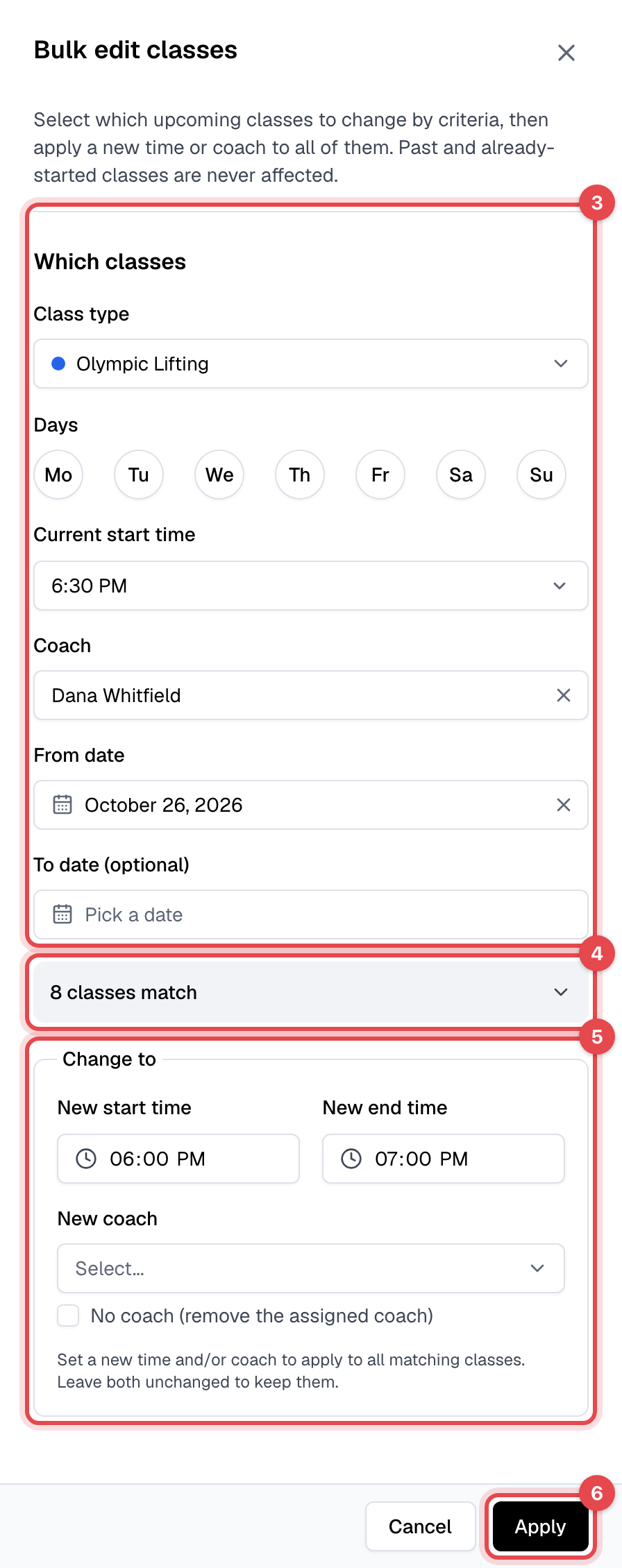
- Click Actions, then Bulk edit schedule. The panel starts from this class's class type, start time and coach.
- Under Which classes, narrow the classes down if you need to: Days, Current start time, Coach, From date and To date (optional).
- Check the count, such as "8 classes match". Click it to see the classes.
- Under Change to, enter a New start time and New end time, pick a New coach, or tick No coach (remove the assigned coach).
- Click Apply.
What happens next
- Bookings move with the class. Each booked member gets the Event modified - Member email, and a text message if you send texts, with the old and new time or coach.
- The coach gets the Event modified - Staff email; when you change the coach, both the old and the new coach get it. A change that leaves everything as it was sends nothing.
- An online class's Zoom meeting moves to the new time.
Good to know
- Bulk edit changes up to 500 classes at a time, and never past or already-started ones. Classes that already have the new time and coach are skipped, and the count you see afterward is the classes that changed.
- A class's class type can't be changed. Delete the class and schedule one of the other type.
- The number of spots and the booking rules belong to the class type: change them there, for every class of the type. See Create a class type.
- Turn either email off, or change its wording, in Email templates.