Hold online classes with Zoom
Connect your Zoom account, and every class of an online class type gets its own Zoom meeting, with the join link sent to the members who book.
Connect your Zoom account and mark a class type as online. Each class of that type then gets its own Zoom meeting when it's scheduled: members who book get the join link, and the coach starts the meeting from the class's page.
Before you start
- You need the Settings permission to connect Zoom, and Schedule to change a class type. The Owner and Managers have both.
- Integrations are part of the Starter plan and above. See Finegym plans and billing.
- Sign in to Zoom as an admin of your business's Zoom account.
Connect Zoom
- Open Settings → Integrations → Zoom.
- Click Connect with Zoom.
- At Zoom, review what Finegym may do and click Allow. You come back to Finegym, and the page shows Connected.

Make a class type online
- In Classes, open the Class types tab and click the type.
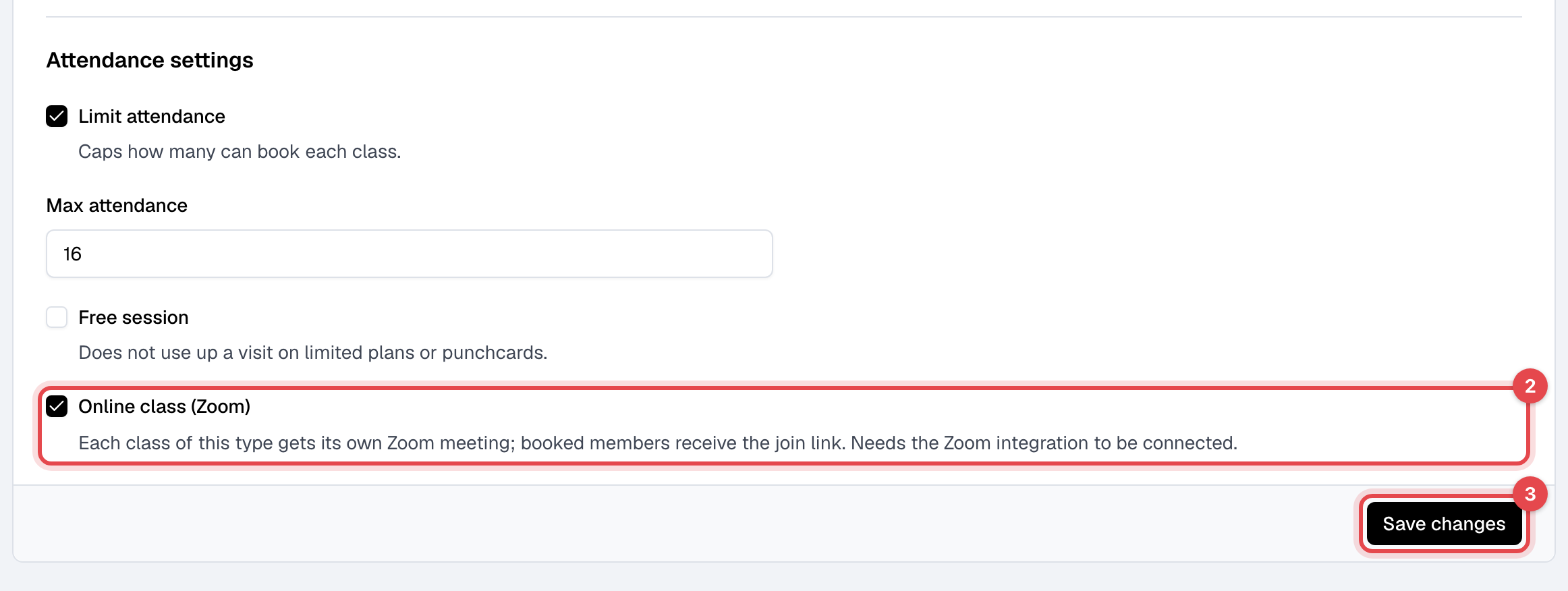
- Under Attendance settings, tick Online class (Zoom).
- Click Save changes.
What happens next
- Every class of the type you schedule from now on gets a Zoom meeting. Classes already scheduled don't, until you change their time.
- A booked member gets the join link in the Event booked - Member email. In the app and on your website, Join the class appears on their booking from 30 minutes before the start. Nobody else sees the link.
- On the class's page, staff see Start the Zoom meeting (host) and Join link (what members get). The coach hosts when their email is a user on your Zoom account; otherwise the connected Zoom account does. Members can join before the host.
- Moving a class moves its meeting, and deleting a class deletes it.
Good to know
- A class page that says "No Zoom meeting yet" was created before Zoom was connected, or while Zoom was down. Edit its time or date and save to create the meeting; booked members are told of the change.
- Disconnect on the Zoom page, or removing Finegym from your Zoom account, stops new meetings. Meetings already created keep working.
- Or connect manually takes the Account ID, Client ID and Client secret of a Server-to-Server OAuth app you create in Zoom's App Marketplace, with the meeting scopes, instead of Connect with Zoom.