Sync your calendar
See your classes and appointments in Google, Apple or Outlook Calendar, and let your Google Calendar block your appointment times.
Add your schedule to the calendar app you already use, and it keeps itself up to date. Connect Google Calendar as well, and members can't book an appointment with you while you're busy there.
Before you start
- Anyone on your staff can sync their own calendar, and connect their own Google Calendar. Picking someone else's link, or everyone's, takes the Staff permission (the Owner and Managers).
Add your schedule to your calendar app
- Open the Calendar and click Sync calendar (the circling arrows) in the toolbar. Appointments has a Sync calendar button too.
- If you can, choose whose schedule it is in Calendar for: Me, a coach, or Everyone for a shared front-desk calendar.
- Under Add to your calendar, click Add to Google Calendar, Add to Outlook or Add to Apple Calendar, and confirm in the calendar app that opens.
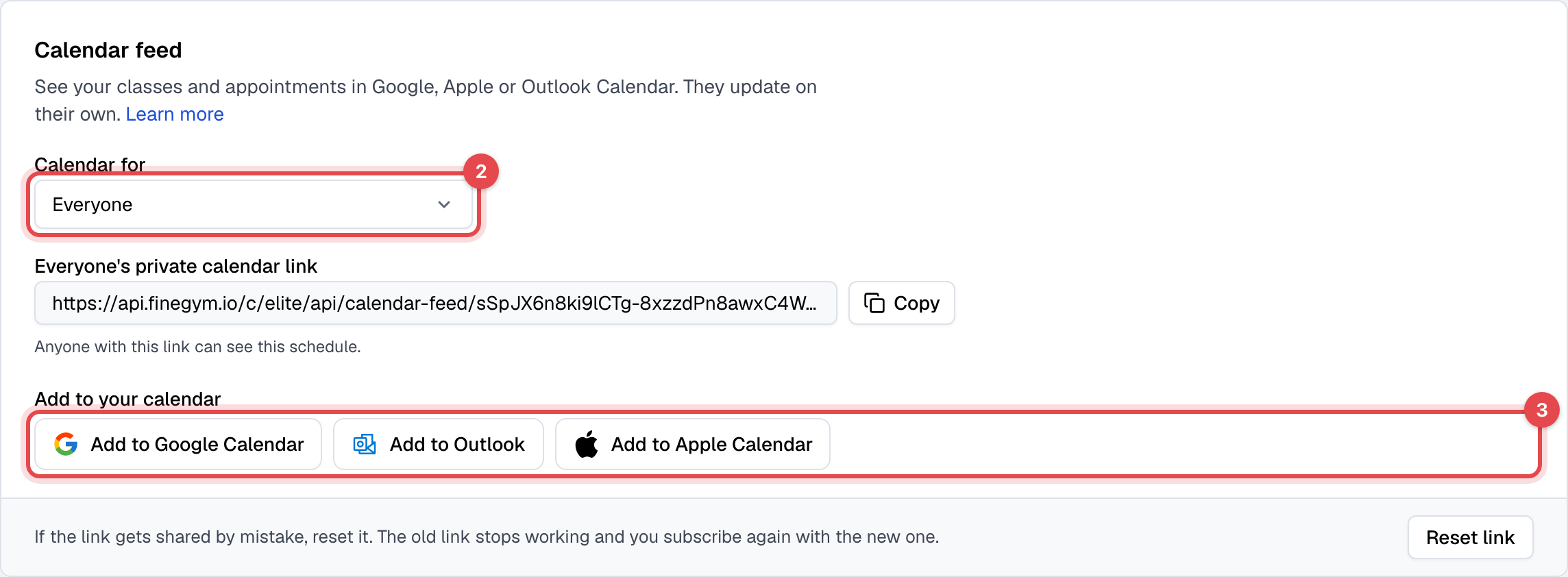
If the button doesn't open your app, such as on a phone or a work Outlook account, click Copy and add the link by hand: in Google Calendar on a computer, Other calendars, +, From URL; on a Mac, File, New Calendar Subscription; in Outlook, Add calendar, Subscribe from web.
Block appointment times with Google Calendar
- On the same page, under Google Calendar, click Connect Google Calendar.
- Choose your Google account and allow Finegym to see when you're free or busy.

What happens next
- The link holds your classes, classes with no coach, and appointments booked with you (with the member's name), from 30 days back to 6 months ahead. Everyone holds every class and appointment.
- Apple Calendar and Outlook refresh about every hour. Google refreshes subscribed calendars about once a day, and can't be made to go faster.
- Once Google Calendar is connected, your busy times there are taken out of your appointment times straight away, and checked again every 5 minutes. Sync now checks at once; Disconnect stops it.
Good to know
- The link works one way: events you add in your calendar app don't come back into Finegym.
- Google Calendar blocks only appointment times, from your primary calendar. Events marked "Free" block nothing, and Finegym never reads what your events are. Bookings made before the busy time stay.
- Anyone with the link sees the schedule, members' names included. If it gets out, click Reset link: the old link stops working, and you add the new one to your calendar app.