Delete classes and class types
Remove one class, a series or every class while you're closed, and retire a class type you no longer run.
Delete one class from its page. To remove many, such as a series created twice or every class over a holiday, use Bulk delete.
Before you start
- You need the Schedule permission. The Owner and Managers have it.
Delete one class
- Open the class from Classes or the Calendar.
- Click Actions, then Delete class, and confirm with Delete.
Each member booked on it gets their visit back and the Event canceled by the business email (and a text if you send texts). Nobody on its waitlist is booked in. A class where anyone has checked in can't be deleted: attendance history is kept.
Delete many classes
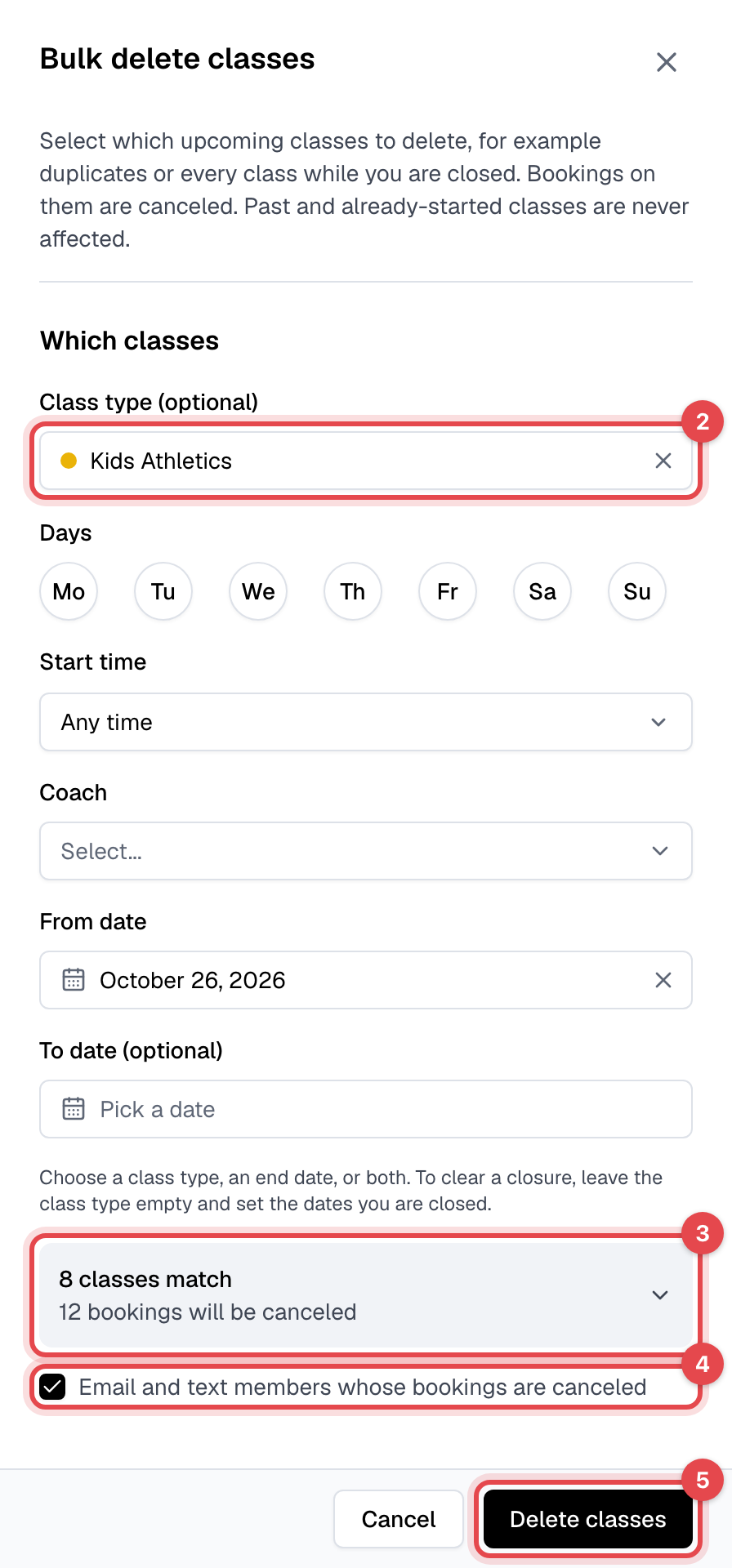
- In Classes, click Bulk delete. To remove a series, open one of its classes and click Actions, then Bulk delete classes: it starts from that class's type, time and coach.
- Under Which classes, choose a Class type (optional), a To date (optional), or both, and narrow it with the other fields. For a closure, leave the class type empty and set the dates.
- Check the summary, such as "8 classes match, 9 bookings will be canceled".
- Leave Email and text members whose bookings are canceled ticked to tell each member, or untick it to tell them yourself.
- Click Delete classes, then Delete.
What happens next
- Each booking is canceled and the member gets the visit back. With the box ticked, they get the Event canceled by the business email, and a text if you send texts: one per booking.
- Waitlists on the deleted classes are cleared, and an online class's Zoom meeting is deleted.
- Classes that have started or ended are never deleted, and a class where anyone has checked in is kept: Finegym says how many it kept.
Why you can't delete a class type
A class type with classes, past or upcoming, can't be deleted: its past classes hold your attendance history. So in Class types, its menu offers Archive instead of Delete. Archived types disappear from scheduling and from your website, and their history stays.
Archiving is refused while the type still has classes that haven't ended, with "Cannot archive class type with future classes." To retire it:
- Bulk delete its classes: in Classes, click Bulk delete, pick the type under Class type (optional) and leave To date (optional) empty, then click Delete classes and Delete.
- In Class types, open the type and click Archive. If it has no classes left at all, past ones included, its Actions menu also offers Delete class type.

A class that is on right now blocks archiving until it ends. Unarchive brings the type back.