Book an appointment for a member
Book a member in with a coach, on their membership or as a paid drop-in, and move or cancel it later.
Members book appointments themselves in the app and on your website. Book one for them when they ask at the desk or by phone.
Before you start
- You need the Bookings permission. The Owner, Managers and Front desk have it; a Coach books only appointments with themselves.
- The appointment type needs a coach with hours. See Set a coach's availability.
Steps
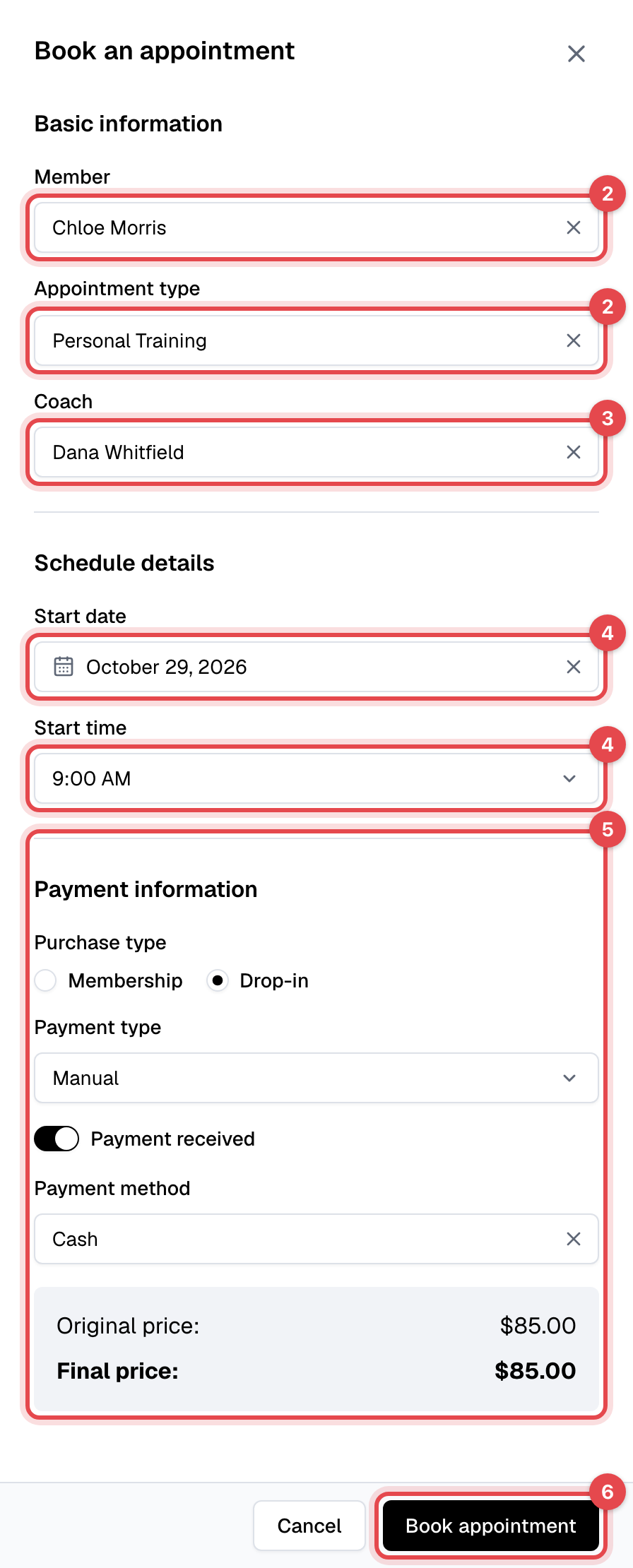
- In Appointments, click Book an appointment. On the Calendar, click Book and then Appointment, or click an empty time.
- Pick the Member and the Appointment type.
- Pick a Coach, or leave it empty to give it to the first coach who is free.
- Pick the Start date, then a Start time. Only the times a coach is free are listed.
- Under Payment information, choose how it's paid:
- Membership: pick the member's Membership.
- Drop-in, when the type allows drop-ins and you have the Sales permission: choose Manual and turn on Payment received with its Payment method if they've paid you, or Card to take the card on a payment page.
- Click Book appointment.
Change or cancel it
In Appointments, open the appointment's menu (⋯):
- Edit changes the Coach, Start date or Start time. Click Save changes.
- Cancel, then Cancel booking, cancels it.
What happens next
- The member gets the Event booked - Member email, and the coach Event booked - Staff. When you move it, they get Event modified - Member; when you cancel it, Event canceled by the business.
- A manual drop-in creates an invoice for the drop-in price, paid if you turned on Payment received. With Card, the booking is made once the card payment goes through.
- Canceling frees the time and gives a membership's visit back. A drop-in's payment isn't refunded on its own: see Refund a payment.
- On the day, Check in is in the appointment's menu. Afterward, Mark as present fixes a forgotten check-in.
Good to know
- Staff can book inside the type's minimum booking notice and cancel after its late-cancel time.
- Nothing can be booked on a closed day.
- Only upcoming appointments can be changed or canceled.