Create an invoice
Sell products at the desk, to a member or to someone who walks in, on an invoice you make yourself.
Make an invoice yourself to sell products, such as a shake or a T-shirt, to a member or to someone who isn't one. Memberships and appointments make their own invoices when you sell or book them.
Before you start
- You need the Sales permission. The Owner and Managers have it, and so does Front desk.
- The products must exist and be Active: see Add a product.
- Selling a membership? Do it from the member's profile instead: see Sell a membership.
Steps
-
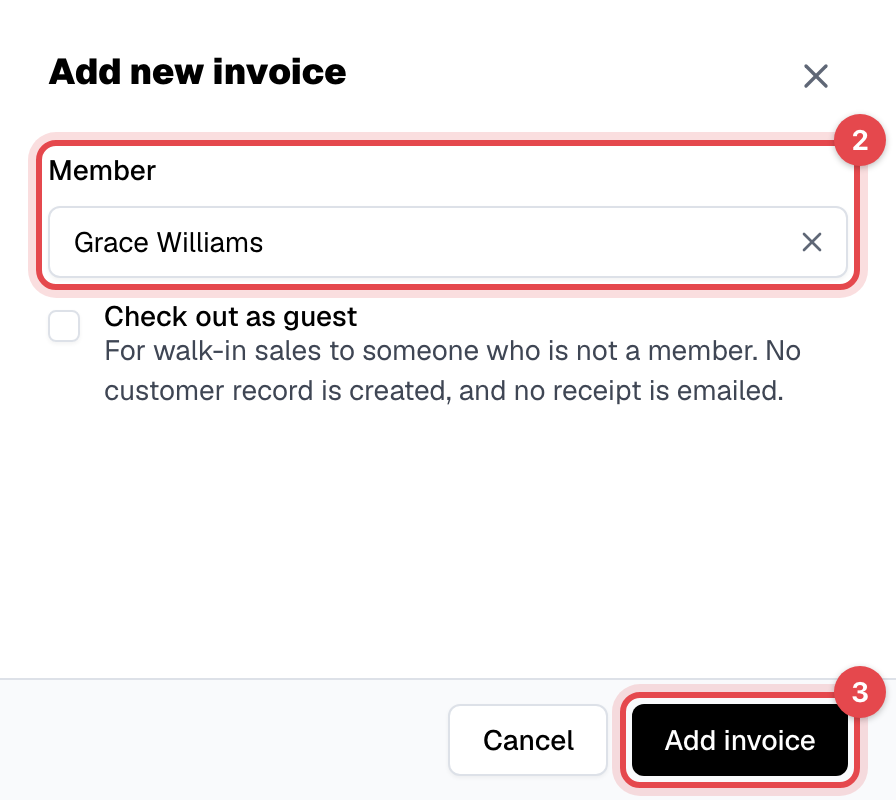
In Payments, click Add invoice.
-
Under Member, pick who it's for. For someone who isn't a member, tick Check out as guest instead.
-
Click Add invoice. The invoice opens, as a draft.
-
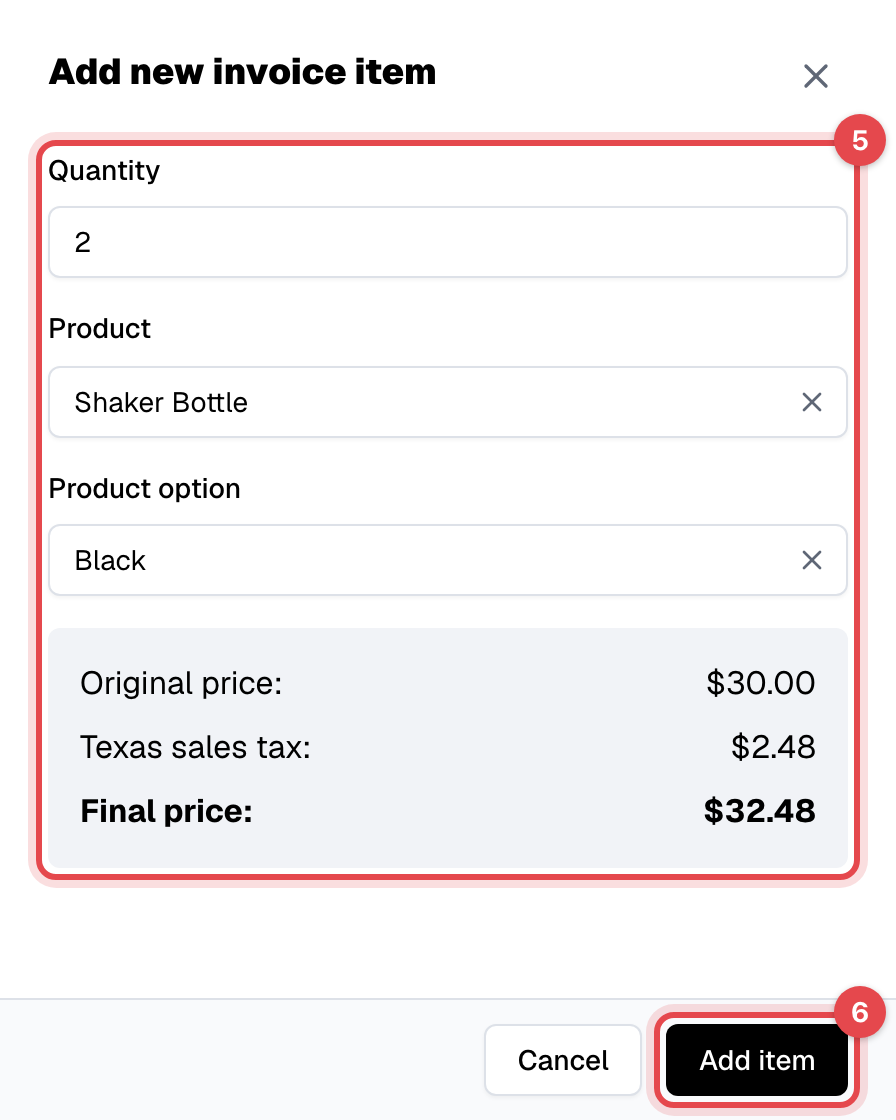
Under Items, click Add item.
-
Enter the Quantity, pick the Product and its Product option, and check the price shown with its tax.
-
Click Add item. Add more items the same way.
-
Take the payment now with Record payment (see Take a payment), or email the invoice: choose Actions, then Send invoice.
What happens next
- Stock: a product that tracks its inventory leaves stock as soon as you add it, before it is paid. Taking the item off with its bin icon puts it back.
- Number: the draft gets its invoice number and becomes Open when you send it or record a payment on it.
- Send invoice emails the member the invoice as a PDF, with a link to see and pay it on your website.
- Walk-in sales create no member and send no email. For a receipt, choose Actions, then Download receipt as PDF once it is paid.
Good to know
- A product with too little stock is refused: "Insufficient inventory for the product option."
- Items and the discount can't change once a payment is recorded. A walk-in sale can't take a discount or a saved card.
- To throw a draft away, choose Actions, then Delete invoice. Its products' stock goes back.
- Taxes for products are added on their own: see Taxes.