Change invoice and receipt settings
Choose the title and number on your invoice and receipt PDFs, and when a declined card is charged again.
These settings change what your invoice and receipt PDFs say, and what Finegym does when a member's saved card is declined for a membership payment.
Before you start
- You need the Settings permission. The Owner and Managers have it.
Invoices and receipts
-
Go to Invoices and receipts: in Settings, under Payments.
-
In What they show, under Document title, enter a title of up to 50 characters, such as "Tax invoice", to replace both "Invoice" and "Receipt". Leave it blank to keep those.
-
Turn Show invoice number off to leave the number off.
-
Click Save changes.
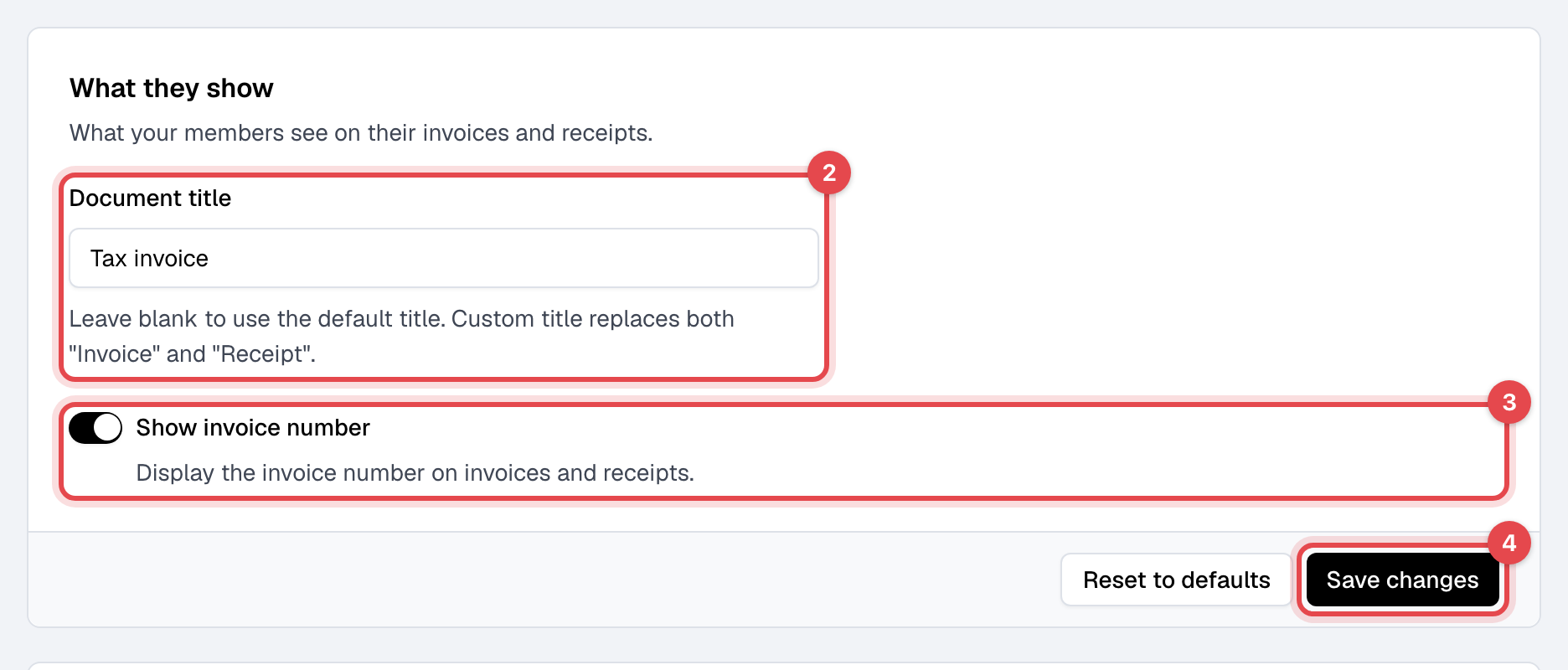
Every invoice and receipt PDF made after that shows the change, older invoices' too: the ones you download and the ones attached to emails. Reset to defaults clears the title and shows the number again.
Declined card retries
-
On the same page, under Retry declined payments after (days), enter the days after the first decline on which the card is charged again, such as 1, 3, 7. Up to five days, each from 1 to 60, smallest first. Leave it empty to never retry on its own.
-
Under Block new bookings, choose when the membership stops taking new bookings: When no retries are left, After the first decline, or Never.
-
Click Save changes.
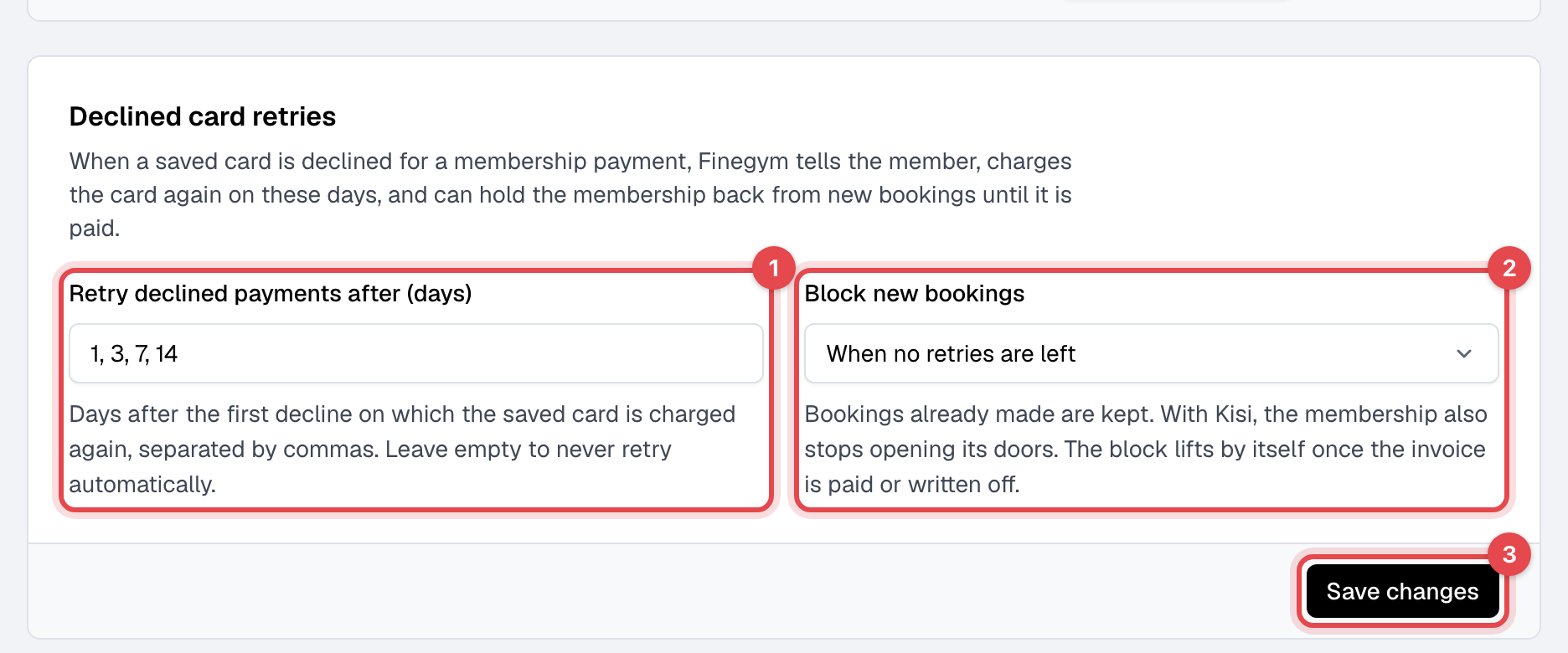
Bookings already made are kept, and the block lifts by itself once the invoice is paid or marked forgiven. How the retries, the emails and the block work is in Failed card payments.