Set up taxes
Add the sales taxes you charge on memberships and products, and choose whether members see prices with tax.
Add each tax you charge as a tax rate, and Finegym adds it to every invoice for what it covers. You enter prices without tax; you choose whether members see them with tax added.
Before you start
- You need the Settings permission. The Owner and Managers have it.
Steps
-
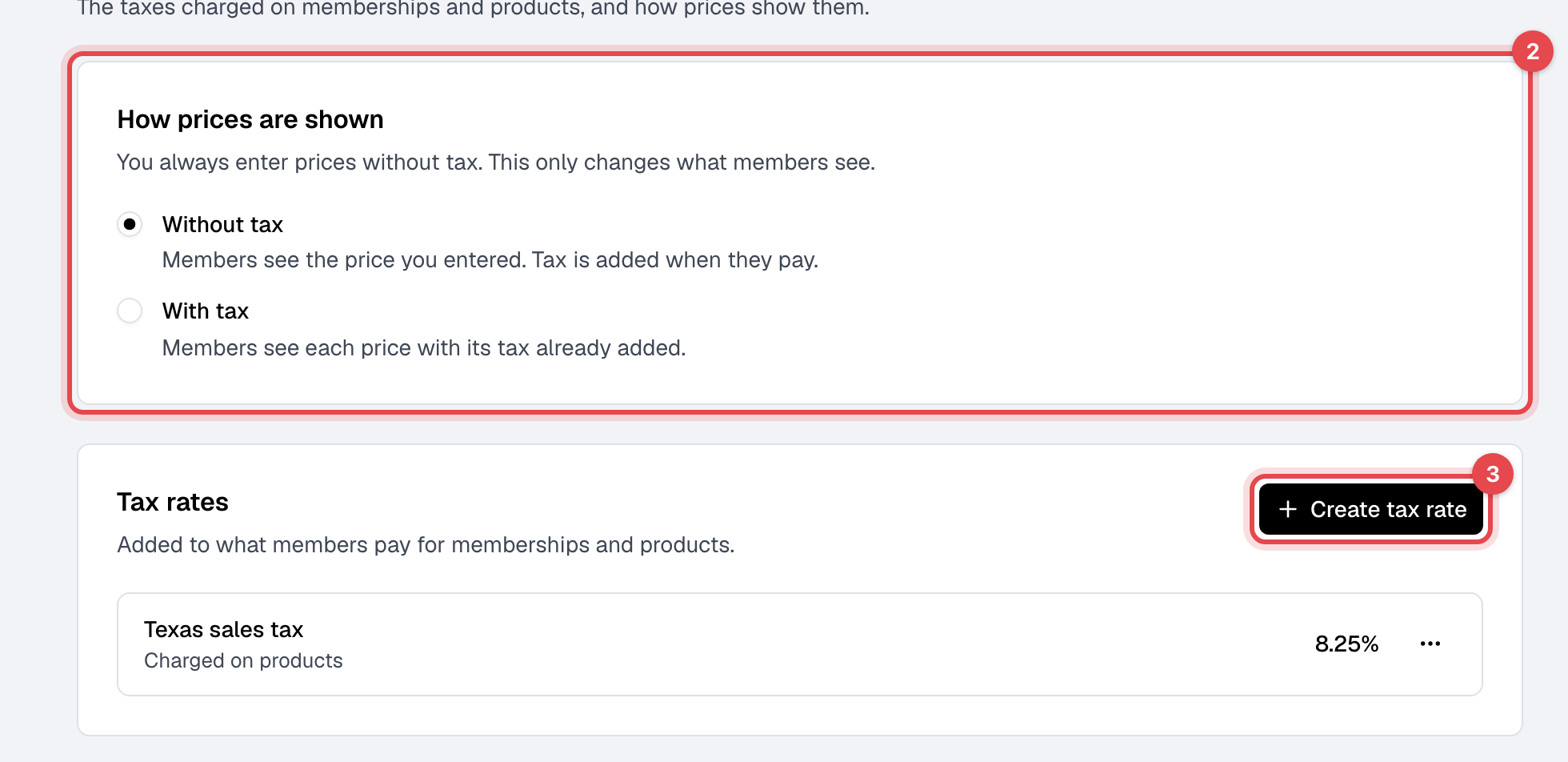
Go to Taxes: in Settings, under Payments.
-
Under How prices are shown, choose Without tax or With tax. It is saved at once.
-
Under Tax rates, click Create tax rate.
-
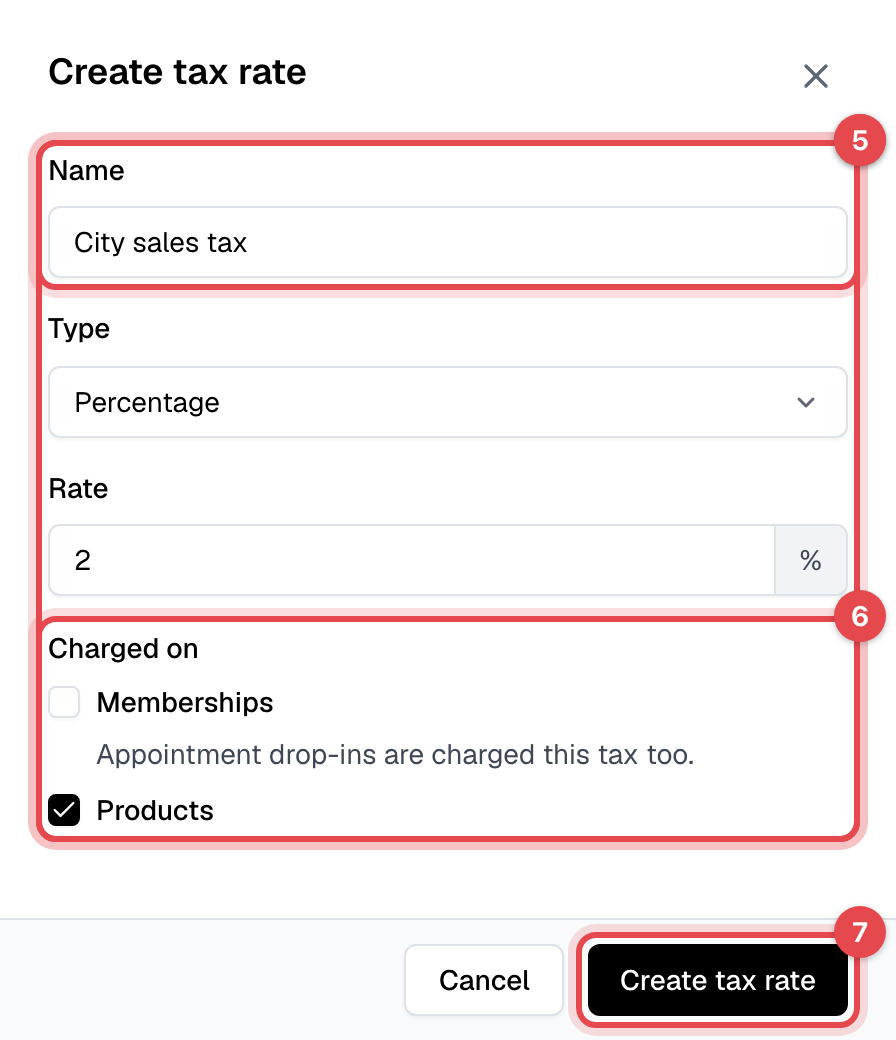
Enter the Name members see on their invoices, such as "City sales tax".
-
Choose the Type, Percentage or Flat amount, and enter the Rate.
-
Under Charged on, keep Memberships, Products, or both.
-
Click Create tax rate.
What happens next
- Every new invoice gets the rate on what it covers: every membership plan (its setup fee included) for Memberships, every product for Products. There is no choice per plan or per product. Appointment drop-ins are charged the Memberships rates.
- Each rate is worked out on the price after any discount, and several rates are added together, each on its own line of the invoice. A flat amount is added per item.
- Invoices already made keep the tax they had.
- With tax only changes what members see in the app and on your website: what they pay is the same.
Good to know
- Delete is offered only for a rate never used on an invoice. Otherwise, choose Archive from its menu: it is no longer charged, and old invoices keep it. Unarchive brings it back.
- Changing the discount on an unpaid invoice works its tax out again with today's rates.