See who owes money
One list of every member with something left to pay, how much and since when, to follow up and export.
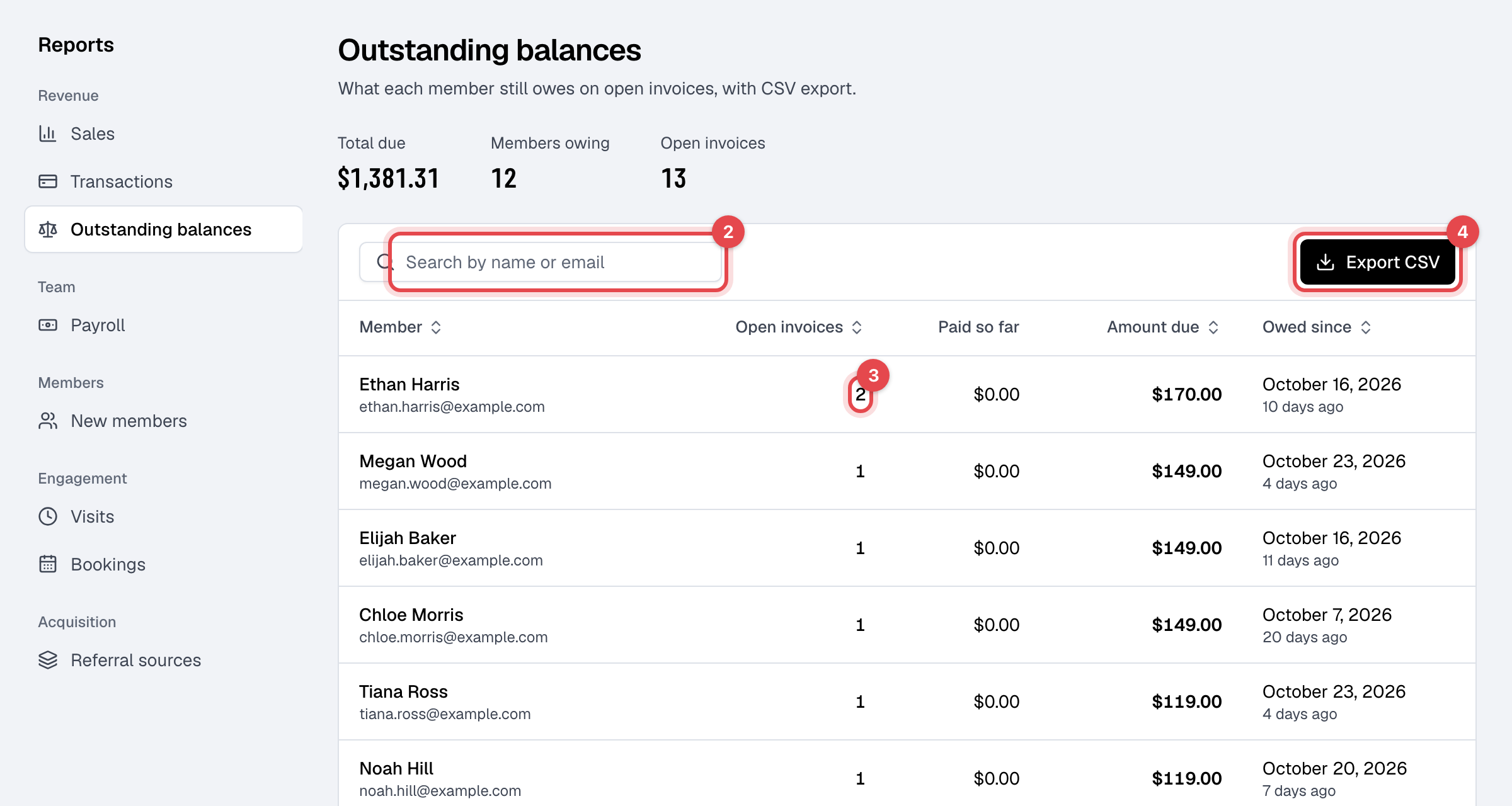
The Outstanding balances report lists every member who still owes you money, one row each, so you can follow up before it piles up.
Before you start
- You need the Reports permission. The Owner and Managers have it. Staff with the Sales permission see the same invoices in the Open view of Payments, with the total next to it as Owed by members.
Steps
-
Go to Outstanding balances: in Reports, under Revenue.
-
Find someone with Search by name or email, or sort by a column. The list starts with whoever owes the most.
-
Click the number under Open invoices to see that member's open invoices.
-
To work on the list elsewhere, click Export CSV.
What the report shows
- Total due, Members owing and Open invoices add up the whole list.
- For each member: how many Open invoices, what they have Paid so far on them, the Amount due, and Owed since, the day the oldest of them was issued.
- Only open invoices with something left to pay count. Drafts, forgiven and void invoices don't.
Following up
- Paying at the desk: open the invoice and take a payment, all of it or part.
- Paying online: on the invoice, choose Actions, then Send invoice. The member gets it by email with a link to pay it on your website.
- A declined card: the Card declined view of Payments lists those invoices, with the next automatic retry. See Failed card payments.
- Writing it off: choose Actions, then Change invoice status, then Forgiven. It leaves the list. If the member pays after all, you can still record the payment on it.